If you answer “Yes” to a background check question, you may be required to upload documents to help explain why. These documents should be uploaded to the Background Questions Supporting Documents (BQSD) section of the Attachment Warehouse.
Things to know
Before you begin
- You must have a pending license application.
- You must have answered “Yes” to a background question.
Gather the following applicable information: Note: If you are a business entity and have resident licenses in more than one state, you’ll need to select one as your home or resident state. Use your FEIN and firm name as it is listed in the Producer Database or application if this is the first time you are using the Attachment Warehouse.
Step 1: Log in
Log in to the Attachment Warehouse.
Step 2: Verify producer contact details
Verify the Producer contact details: If this is your first time using the Attachment Warehouse: Click Edit. Enter your business phone number and email address. Click Update. Click Continue. If the producer information shown is correct, click Continue.
Click Add New Document.
If prompted, read and accept the Individual Producer agreement.
Select one of the following: If you are attaching documents for yourself or your business, select Producer. If you are submitting documents on behalf of somebody else, select Producer’s Authorized Submitter and complete the form that appears. Click Continue.
The Document submission page opens. Any previously uploaded documents are shown.
The Individual Producer Attachment screen opens.
The Producer/Authorized Submitter screen appears.
The Upload New Document screen opens.
Step 3: Upload documents
- Select the application type.
- Click Next.
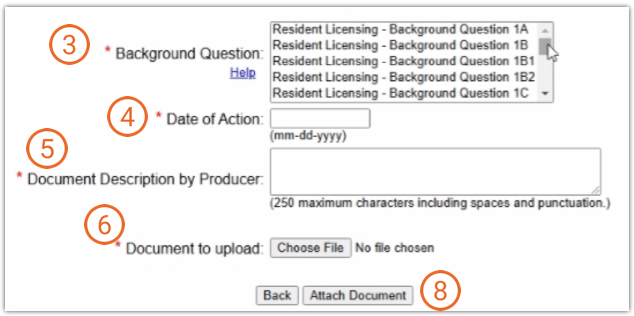
- Select the background question you’ve answered “Yes” to that you need to upload supporting documents for.
Tip: You can find the background question number by reviewing your Order History. Your Order History is available in the User Menu after you log in to LicenseHub.
Tip: For a list of background questions, see Background Question Categories. - In Date of Action, select the original date of the issue or incident.
- In Document Description by Producer, enter a description of what the document is.
- Click Choose File.
A file browser opens. - Navigate to the file you want to upload and click Open.
The file browser closes. - Click Attach Document.
The Document Submission screen opens, and your newly attached document is shown.
Important: Verify that you are uploading the correct document in the correct section of the Attachment Warehouse. Once you upload a document, it cannot be deleted without the State’s approval. - (Optional) To upload another document, click Add New Document and repeat the steps above.
- Click Logout.
You will receive an email confirming the change. You can then use the link in the email to sign in and view details.
Tip: You can check the status of your application at any time. It may take a few days for the State to review your documentation.
Assign previously uploaded documents to other questions
Once you assign a document to a background question, you cannot remove that association. However, you can assign that document to other questions without uploading it again.
- Locate your document in the table of previously uploaded documents.
- Click Link to Document for that row.
The previously assigned background questions are shown. - Select one or more background questions to assign to the previously uploaded document.
Note: Unfortunately, if the background question is visibly cut off, there is no way to see the full question on the edit screen. However, you can use the full list of background questions to help guide you. - Click Update.
The table of uploaded documents refreshes to show that document assigned to the new question.