
A Designated Responsible Licensed Producer, or DRLP, is an individual who is connected to a business entity’s insurance license and is responsible for helping ensure the business entity meets state licensing requirements. In many states, the DRLP must hold an active license for the same license type or lines of authority as the business entity. Some states may also require the DRLP to be an owner, officer, director, partner, or other authorized person within the business.
Designating a DRLP helps regulators identify the licensed individual responsible for the business entity’s compliance. A business entity may assign different DRLPs for different states or for specific license classes within the same state, depending on state requirements. If a DRLP is missing, inactive, or does not meet those requirements, it can affect the business entity’s ability to submit certain licensing transactions or maintain the appropriate license authority.
You can use NIPR's LicenseHub to update DRLP information for participating states that support this transaction. Keep in mind, each state determines how these changes are managed. While many states partner with NIPR, some may require you to use a different system.
This article walks you through what to expect and how to change your DRLP based on your state.
Before you begin
Determine how your state manages DRLPs
As a starting point, we recommend reviewing your state's DRLP requirements. To do so:
- Go to the State Information page.
- Select your state in the drop-down field.
- Click Visit state page.
Instructions reporting changes to DRLPs can be found under the "Information Updates" section on that page. If your state uses the NIPR LicenseHub tool to manage DRLP changes, you can use the instructions in this article to designate responsibility.
Gather identification for the producer you’ve chosen
An individual must hold the same or equivalent license type as your business before they can be assigned as the DRLP. They do not necessarily need a "producer" license; if you have an "adjuster" business license, the DRLP will need to hold an "adjuster" individual license.
Have the NPN of the producer you intend to assign on hand. For more information on NPNs, read Find a National Producer Number (NPN).
Sign in
- Go to LicenseHub.
- Click Business entity.
- Select how you'd like to identify the licensee, then enter the required details:
- National Producer Number (NPN): See instructions for finding your NPN here
- License number: You must also enter your state
- Federal Employer Identification Number (FEIN): This applies only to business entities
- Accept the user agreement.
- Click Next.
Update DRLP
- In the left navigation menu, click License Update.
Any currently assigned DRLPs appear on the next page, listed by state and license class. If a DRLP has a status of “pending”, it means the change has been submitted to the state and NIPR is waiting for confirmation from the state that the change has been made in their records. (If needed) If you need to remove an existing DRLP, click the trash can icon (delete) next to their name, then clicking Yes, remove.
Note: You must remove them for each license class within each state separately.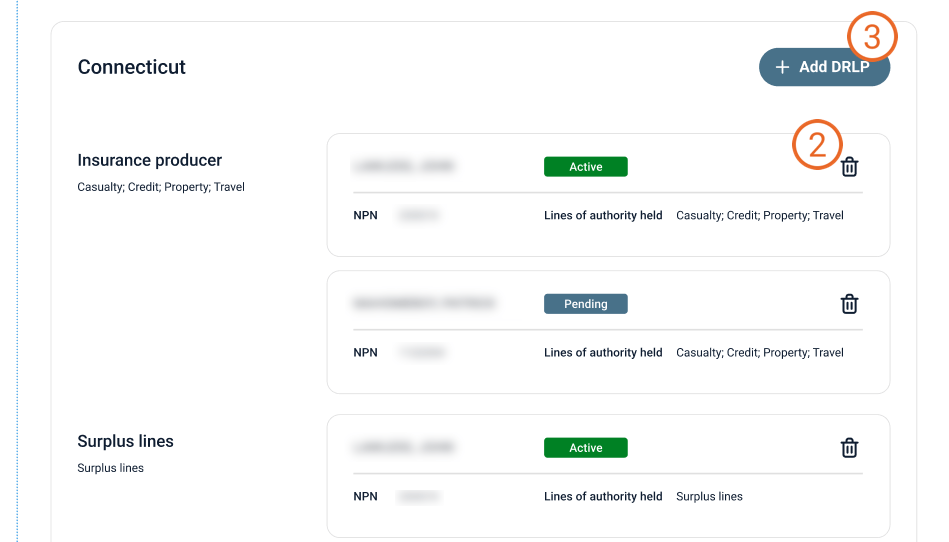
- Locate the state you want to update and click Add DRLP.
- Enter the producer’s NPN and last name.
- Choose whether to apply the DRLP to the current state or all states for which your business holds a license.
- Click Continue.
The producer's license classes and lines of authority appear on the card. - Ensure the correct liceneses classes and LOAs are listed, then click Continue.
The DRLP appears listed on the next page. If your producer cannot be found, or if any of the states you have selected do not use NIPR for DRLP updates, you will receive an error message. - (if needed) Assign a DRLP for any additional states and license classes.
- Once all necessary changes are made, scroll to the bottom of the page, and click Next.
- Review your changes on the next screen. If everything looks correct, click Next.
- Enter your contact information in the Authorized Submitter screen, then click Next.
Review and accept the attestation by selecting the "I accept" checkbox and clicking Next.
Provide an email address where the receipt and documentation of the change can be sent, then click Next.
Note: You may enter up to 4 additional email addresses to receive copies.Click Submit.
Once you have passed the "Submit" step, your changes are sent to the state.